Microservices can be an important part of any TrackVia system that needs to perform complex automation or communicate with third-party systems. In order to fully test and deploy changes to microservices running on your account, TrackVia allows you to upload and test microservices within your Sandbox accounts before deploying the code to production.
Getting Started
In order to access Microservices, you need to be provisioned as a Super Admin in the system.
Navigate to your Sandbox Environments page and enter the sandbox you’d like to test in.
Attaching Microservices to Sandbox Accounts
The process for attaching microservices to a sandbox account is the same as attaching them in production:
Navigate to the Microservices page in your Sandbox account and attach the upload the microservice code:
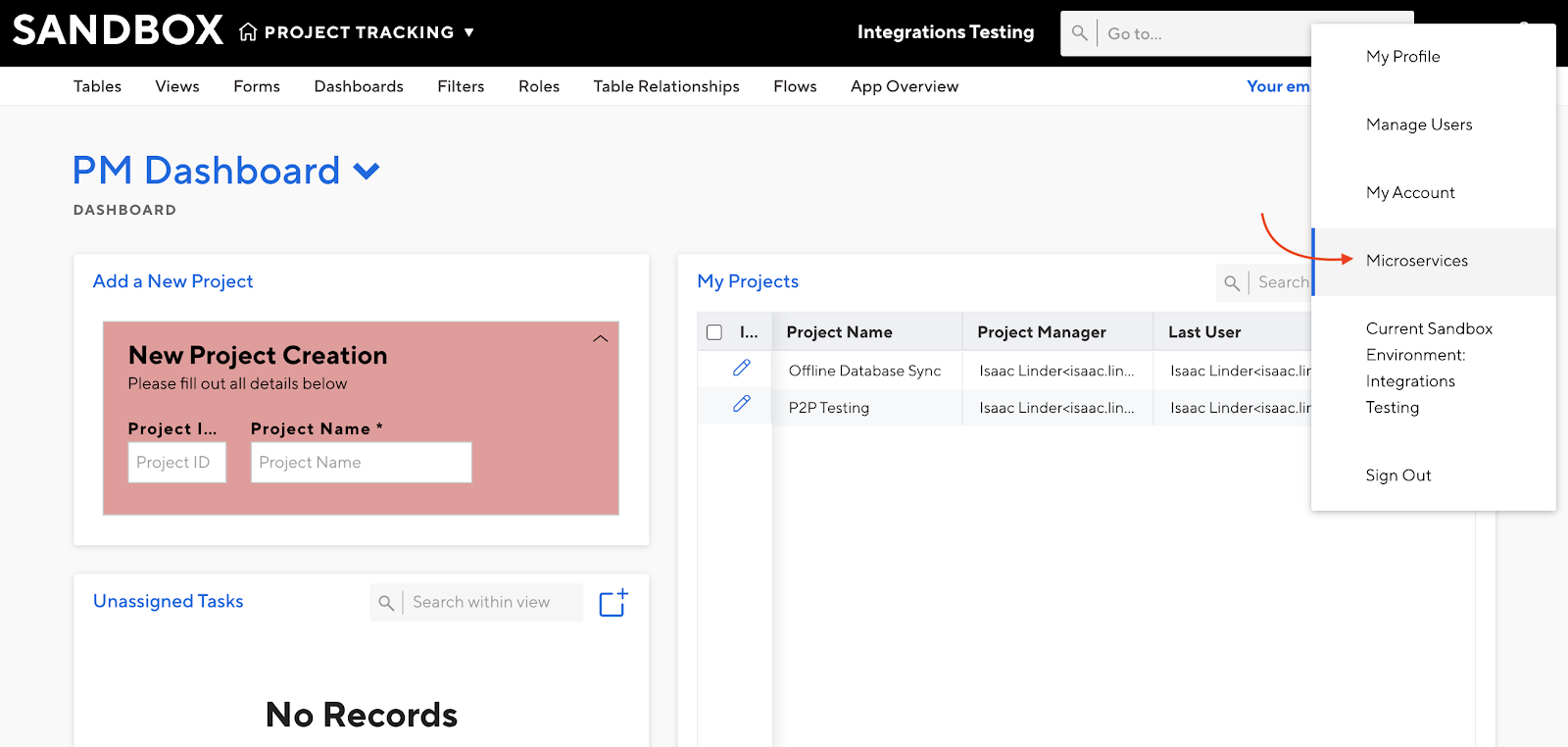
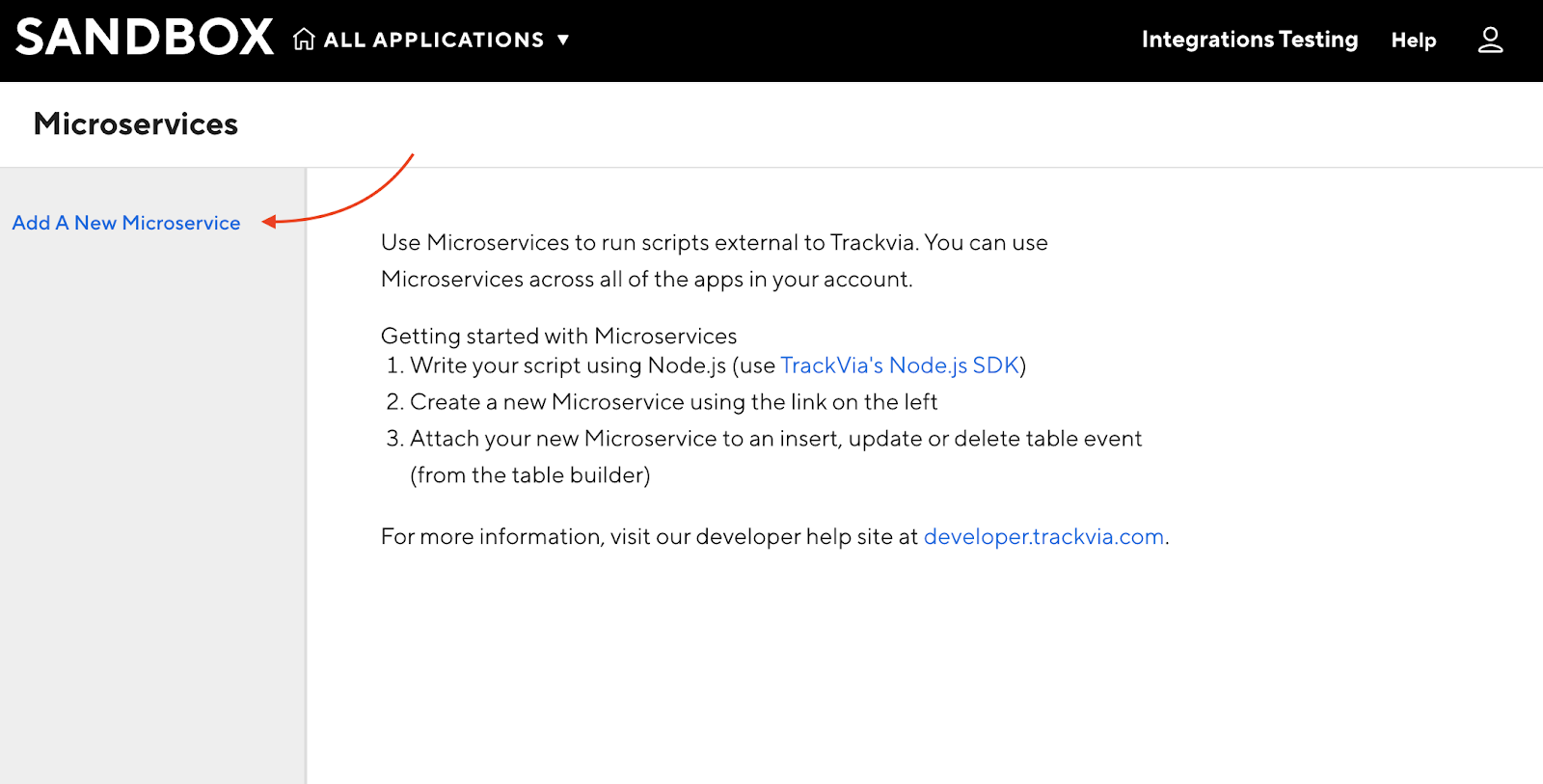
Navigate to the table that you would like to trigger the microservice and attach the microservice to the appropriate table event (After Insert, After Update, or After Delete) as normal.
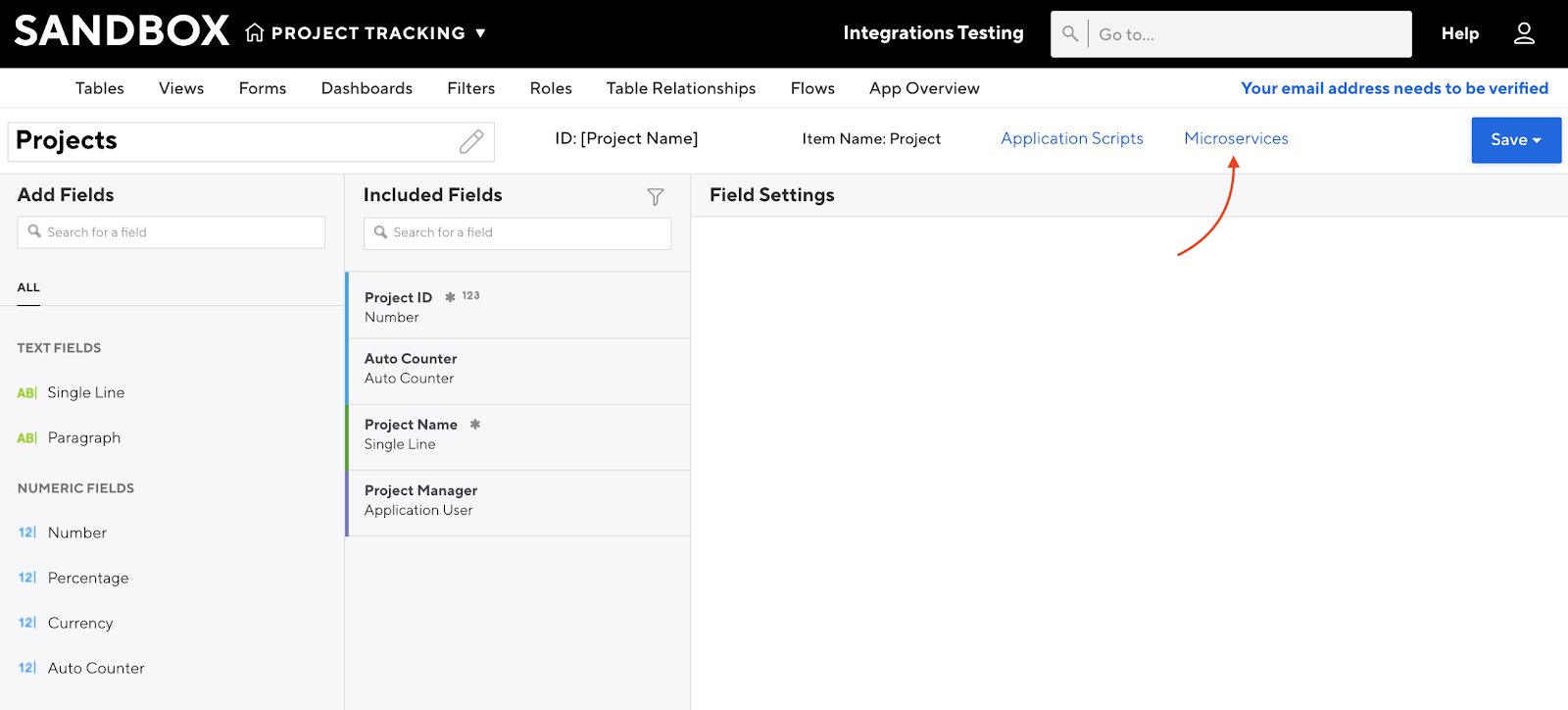
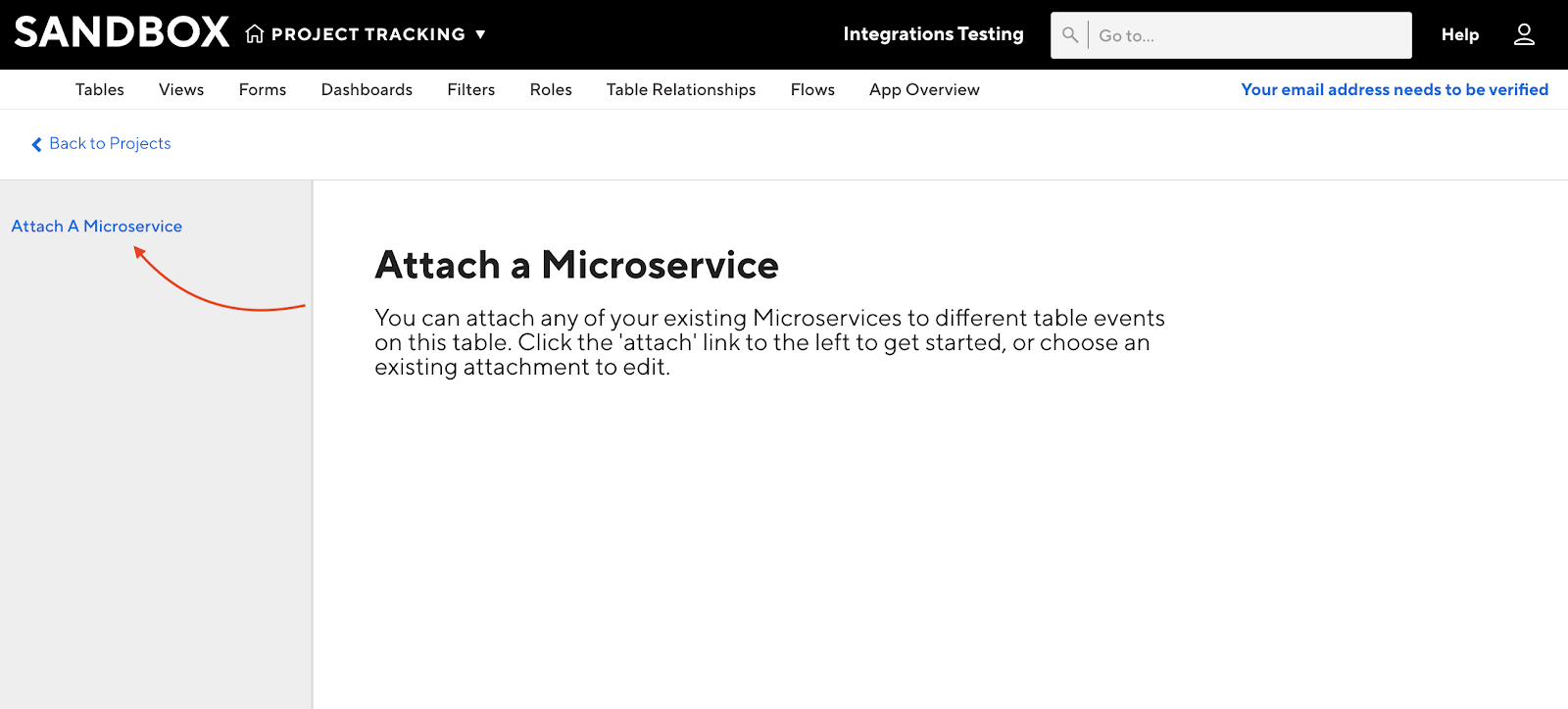
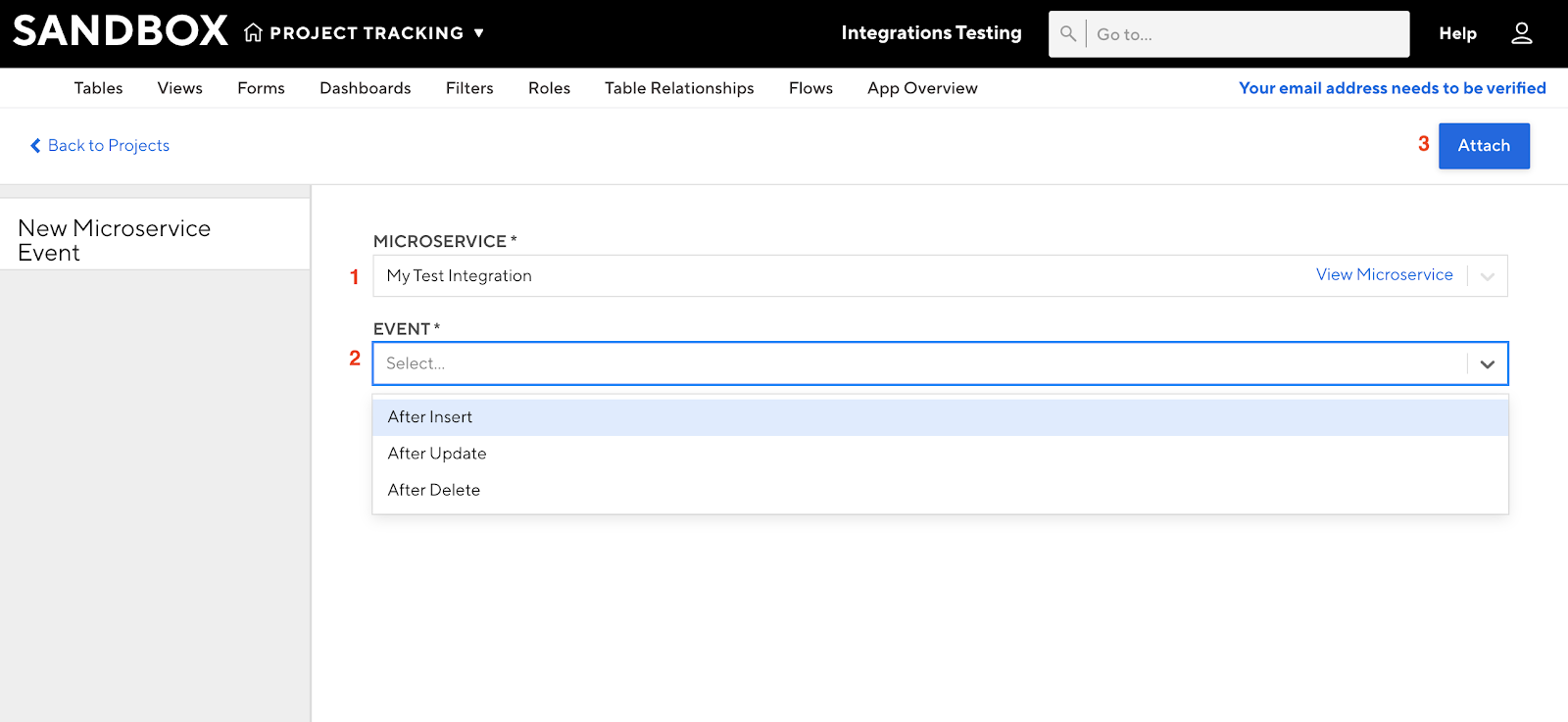
Once your microservice is attached to the appropriate table event, you can trigger the service to test the results.
Note: Microservices attached to Promotable Sandboxes are *not* copied to Production when changes are promoted to Production. Microservices need to be added to Production and linked to the appropriate tables in Production manually.
Super Admins can download microservices that have been loaded to Production or Sandbox accounts, which makes it easier to update and troubleshoot them. Microservices in your production account can be downloaded, edited, and re-uploaded even while you have an active Promotable Sandbox.
Using microservices with a newly created sandbox
Just as microservices aren't carried over to Production when a Promotable Sandbox is promoted, they also aren't copied into a sandbox when it's first created. Any microservices that exist in your production account need to be manually re-uploaded and re-attached to the appropriate table events in the sandbox — the same process described above for attaching a microservice to any account.
If your microservice makes API calls back to TrackVia
If a microservice calls the TrackVia API — for example, to read or update records — and you want to test it against your sandbox, that microservice needs to be modified to target the sandbox account specifically:
- Use the parent account's API Key and Auth Token — you do not need separate sandbox credentials.
- Add an
account-idheader to the request, set to the sandbox account's ID (see The Open API and Sandbox Accounts for how this header works). - If you're testing with Postman, pass
account-idas a header with the sandbox account's ID as the value. - In the microservice's own code, the account ID should also be set as a constant in the JS file, so the microservice consistently targets the sandbox in all of its own communications with TrackVia — not just in the initial test call.
If a microservice is only configured with your production account ID, it will continue acting on production even when invoked from a sandbox.
Super Admin requirement for invoking a microservice
Calling the /invoke endpoint for a microservice requires that the user associated with the API token be a Super Admin. In a sandbox specifically, that user must have already existed as a Super Admin before the sandbox was created — this follows from the same limitation described in How to Create a Sandbox: a sandbox only reflects the users who existed at the time it was made. A user promoted to Super Admin, or added to the account, after the sandbox was created will not be able to invoke a microservice in that sandbox.
If both of the above are true — the API user was a Super Admin before the sandbox existed, and the microservice's calls are correctly targeting the sandbox via the account-id header/constant — invoking a microservice from a sandbox works the same way it does in production.
Microservices do not trigger each other via field updates
To our current understanding, an app script or a microservice that updates a field will not cause another microservice watching that field (via a table event) to fire as a result. In other words, one microservice's changes don't chain into triggering a second microservice the way a direct user edit would.
Comments
0 comments
Please sign in to leave a comment.