The Main Event! You’ve added new features to your apps in a Promotable Sandbox, tested them, and now you’re ready to promote them to your users who are working in Production. Let's look at what happens when you promote changes and review best practices for scheduling a promotion to Production.
What to Expect when you click ‘Promote’!
Promoting changes from a Promotable Sandbox to Production is as easy as the click of a button! But, there’s a lot that happens when you click that button, so let's walk through an example to see how it works:
The Use Case
My TrackVia account currently houses one Project Tracking app that my company uses to manage their work:
Recently, HR inquired about creating an app to manage HR Incidents and escalations. To make sure I didn’t disrupt anyone working in Production, I built the HR app in a Promotable Sandbox:
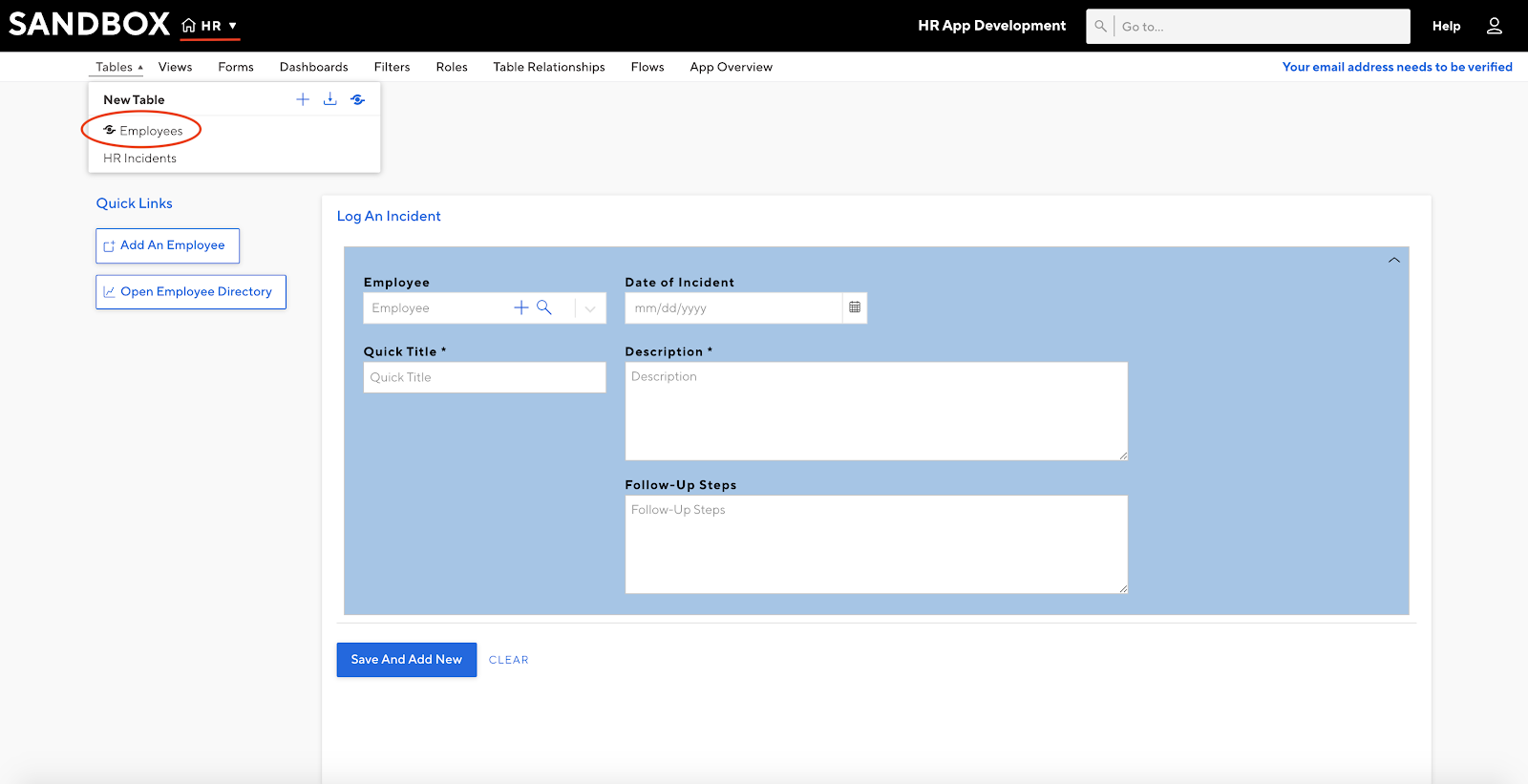
Note that the HR app shares a common “Employees” table with the Project Tracking app.
Once all updates have been thoroughly tested in your Promotable Sandbox, it’s time to promote those changes to Production:
Best Practice
Prior to Promoting changes to Production, we recommend that you access the Changelog for your Promotable Sandbox to ensure that no other App Admin or Super Admin have been making changes in the sandbox that you are not aware of:
We will cover the details of the Changelog itself in this article.
Once you are ready to Promote your changes to Production and click “Promote”, you will see the following message:
Best Practice
Once you confirm that you want to promote changes to Production by clicking “Promote Sandbox” users will not be able to access your account for the duration of the promotion. Therefore, we recommend that you promote changes after business hours or at a specified Maintenance Downtime window that you have scheduled with your business.
The Promotion Event
When you are finally ready to promote your changes, the TrackVia system follows a four-step process that it is important for your Super Admin to understand:
- As soon as you click “Promote Sandbox” TrackVia checks to ensure that the system can successfully Promote your changes before logging you and all users out of the system.
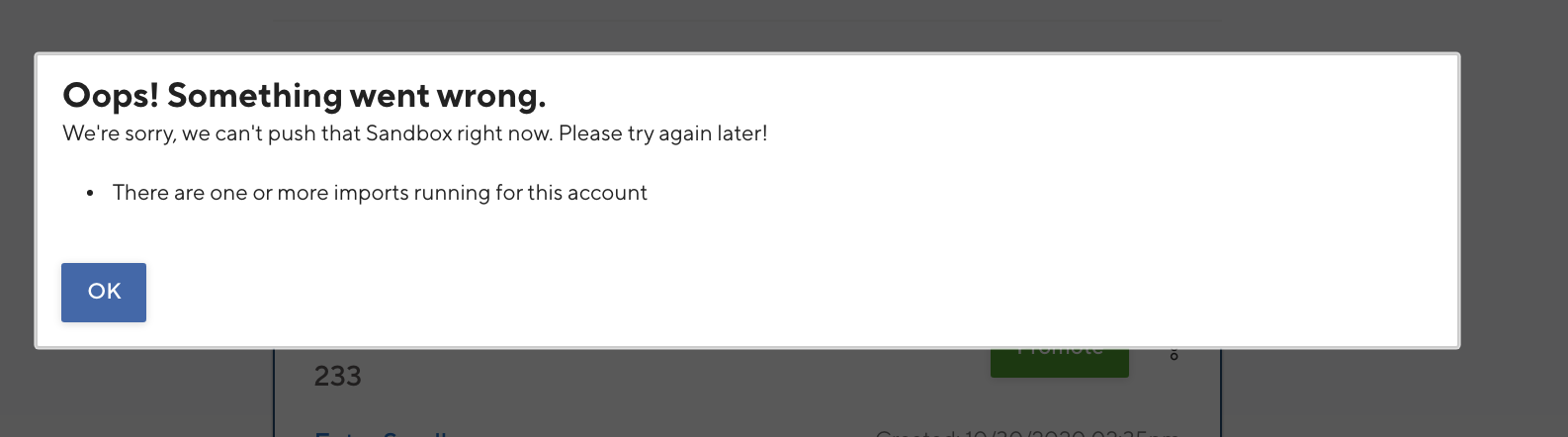
Note: If a long-running import is adding data to your Production system, your Super Admin will see an error indicating that the import process needs to finish first.
If promotion still fails after your import has finished
Each customer's schema keeps a counter that tracks in-progress imports: it increments when an import starts and decrements when the import finishes. The promotion process checks this counter and won't start if it isn't at zero.
Normally, this counter returns to zero as soon as your import completes, and promotion proceeds without issue. However, if an import fails in a way that isn't properly captured, the counter can get out of sync — left above zero even though no import is actually still running. When that happens, you'll see the same "import needs to finish first" error on promotion, even though your import already completed successfully.
This is not something you can fix yourself — the counter has to be corrected on TrackVia's end. Contact TrackVia Support if you believe this is happening: reference the account and note that promotion is failing with an import-in-progress error despite no import currently running. TrackVia's Ops team will confirm how many imports are actually in progress and reset the counter to the correct value.
Assuming that your Promotion is able to start, TrackVia moves to the next step of the process:
- In order to ensure that you have a fail-back precaution for any unintended issues, TrackVia creates a backup of your Production account directly as it exists before the Promotion event. This backup is available under the Backup & Restore tab of the ‘My Account’ area in your account:
- During the promotion of your changes from the Promotable Sandbox to Production, users who are working offline will be able to continue adding and editing data in the app. For more information on how Promotable Sandboxes and Offline Mobile work, see this article.
App script timeouts and Promotable Sandboxes
If you've had TrackVia Support increase an app script's timeout in a Promotable Sandbox, be aware that promoting that sandbox will overwrite the parent (production) account's app script timeout with the sandbox's value.
This means:
- If you want the timeout increase to apply to production as well, promoting the sandbox will carry it over automatically — you don't need to request the change separately for production.
- If you need production's timeout updated but are not ready to promote the sandbox (or want to delete the sandbox instead), that value cannot be changed in production while the Promotable Sandbox exists. In that case, contact TrackVia Support directly and they can make the change in production for you.
- TrackVia recommends setting the timeout to the same value in both the sandbox and production up front. Otherwise, if the values differ, promoting the sandbox later will silently change production's timeout to match the sandbox — which may not be what you expect if time has passed since you originally requested the change.
Note: If your Production account has Microservices or Workato recipes connected to it, those integrations will receive error messages while the Promotion event is taking place. Please ensure that all integrations are paused prior to Promoting changes or ensure that your integrations have the proper logic to handle and retry failed data once Production becomes unlocked.
- Once the promotion is complete, you will receive an email letting you know that your Production account is unlocked and users can access the app!
Note: If for any reason the Promotion is unsuccessful, the TrackVia system will restore your Production account to the state prior to promoting changes and you will receive an email which you can utilize to triage the issue with the TrackVia Support Team.
Up Next: Anatomy of the Changelog
Comments
0 comments
Please sign in to leave a comment.