Two ways to Require a value for a Field
- A field can be marked as required in the Table Editor. Any new record must contain a value in this field upon creation.
- Fields can be marked as required, or conditionally required, on a specific form. Because custom forms can be assigned to different users through Roles, this allows each user to enter the information relevant to their stage of the workflow.
Required on All Forms - using the Table Editor
For example: when a record is created, users need to enter the "First Name" of the record. In this case, mark the "First Name" field as required in the Table Editor to ensure it is never left blank.
To make a field required in the Table Setup, edit the table that contains the data and select the "Field is Required" checkbox.
Required on Custom Forms - using the Form Editor
To make a field required on a form, create a custom form and hover over the field you want to require. Click the pencil icon that appears, then in the "Field Settings" popup, navigate to the Mark Required" tab.
From here, you can choose whether you want the field to always be required, only required when it is shown due to a show/hide rule on the Form, or only be conditionally required when a specific condition has been met.
When editing an existing record, or using this Form to create a new record, an error will display if the user has not filled in the necessary information:
If the empty required field is in a collapsed form section, TrackVia automatically expands that section and scrolls to the field when the user tries to save.
Please note: Relationship fields can only be marked as required on the Form level, and not at the table level.
A Workflow Example
Making certain fields required can be incredibly helpful for workflow. Several users may each need to enter data for a record in a systematic, step-by-step process. User 1 may create the record by entering the "Name" and "Scheduled Start Date" upon record creation, set at the table level.
Conditionally Required Fields on a Form
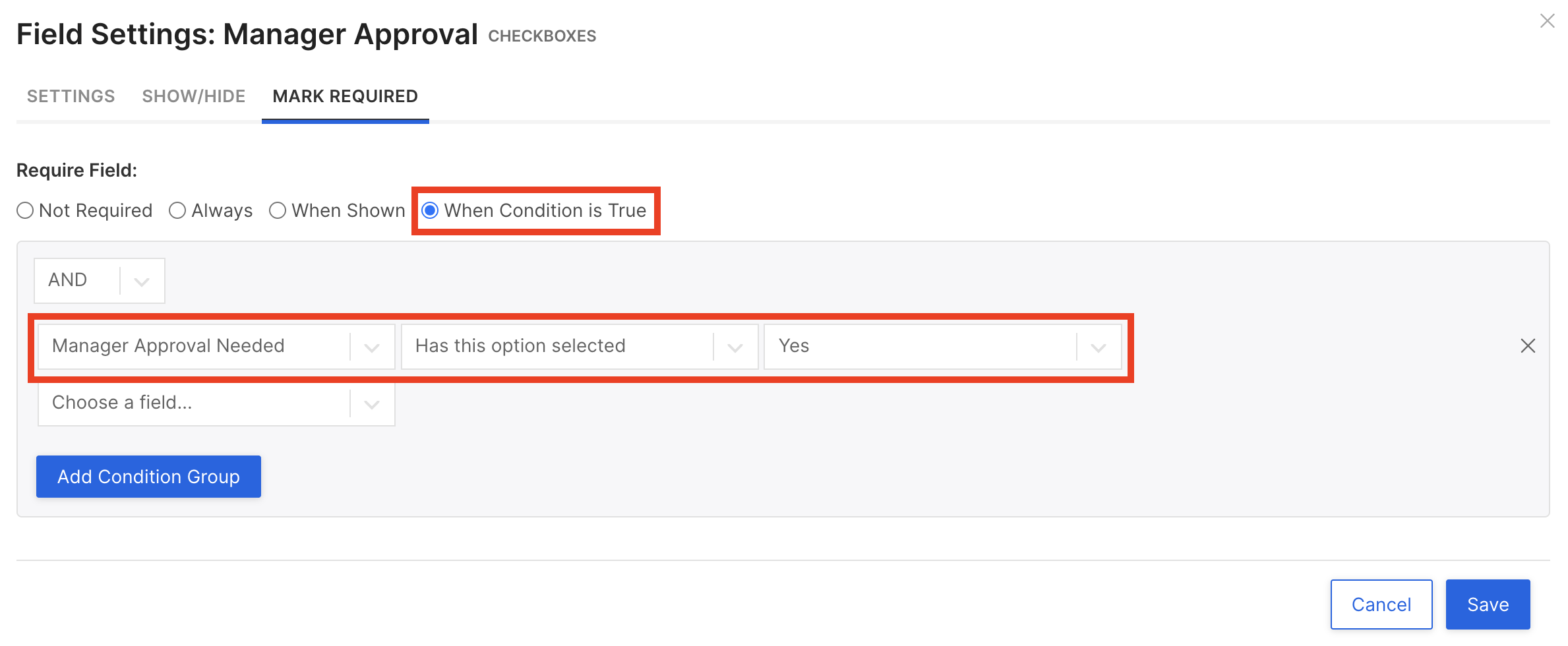
Conditionally required fields let you require a field on a form only when specific conditions are met. Follow the steps below to configure them on a custom form.
Step 1: Edit a Form.
Step 2: In the form editor, click on the pencil icon next to the field you wish to make conditionally required.
Step 3: Navigate to the "Mark Required" tab
Step 4: Select the conditions you wish to be met in order for the field to be required on the Form.
Conditionally Required Fields Behavior in Views
If a field is or becomes required based on certain conditions being met, an asterisk (*) will appear inline in the cell. If a user attempts to inline-edit a conditionally required field, they may edit the value in the field, but they CANNOT remove /null out the value in the field. If they attempt to delete the value from the required field a message will appear preventing them from removing the value.
What CANNOT be marked as required or conditionally required on a Form?
- Multi-Select widgets
- Location fields (except when using Location at Creation*)
- Triggered and Calculated fields
Related Articles
How to Use Form Show / Hide Rules
Comments
0 comments
Article is closed for comments.